

To remove Little Reader from your computer, please follow the instructions below:
For Windows XP
-
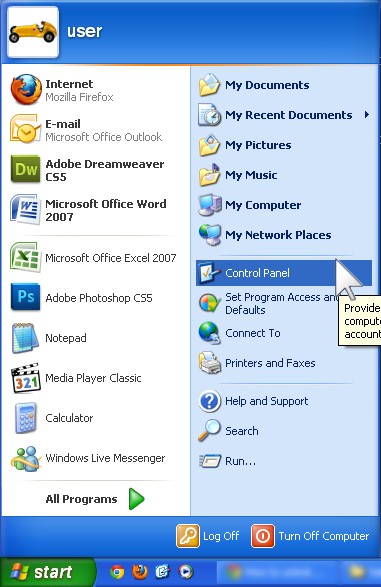
From your Start menu, open your Control Panel.
-
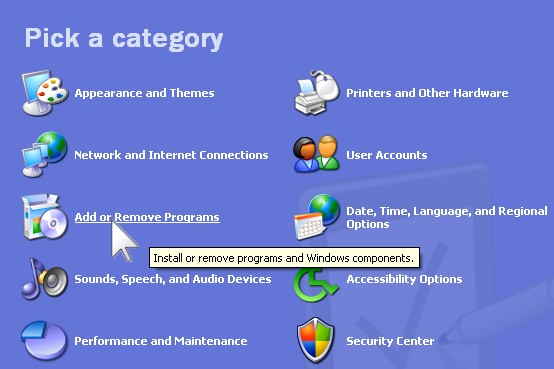
Go to Add or Remove Programs.
-
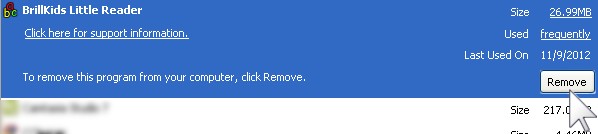
Find and select BrillKids Little Reader, then click on the Remove button.
-
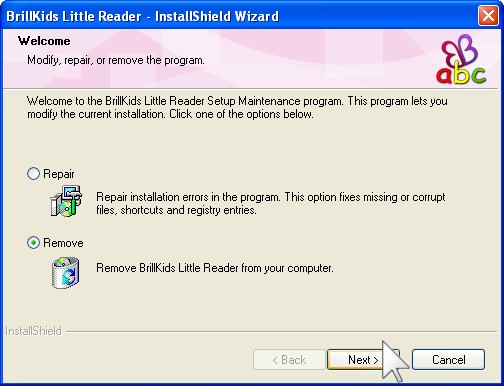
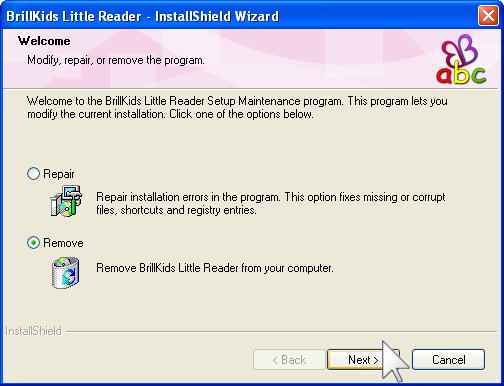
In the InstallShield Wizard that opens, choose Remove and then click Next.
-
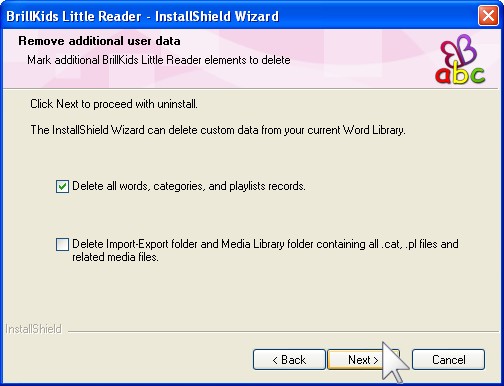
Choose whether you want to delete all preset settings and/or all media files and then click Next to start the removal process.
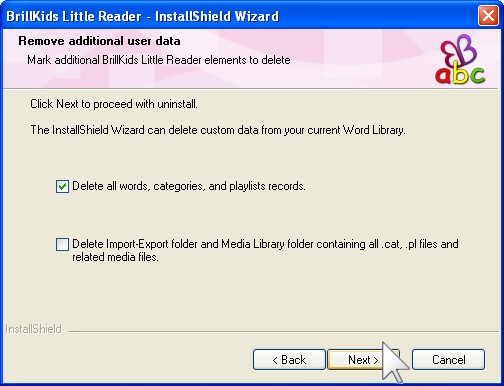
- Once the uninstallation has completed, click Finish to exit the the InstallShield Wizard.
For Windows Vista, Windows 7 & Windows 8
-
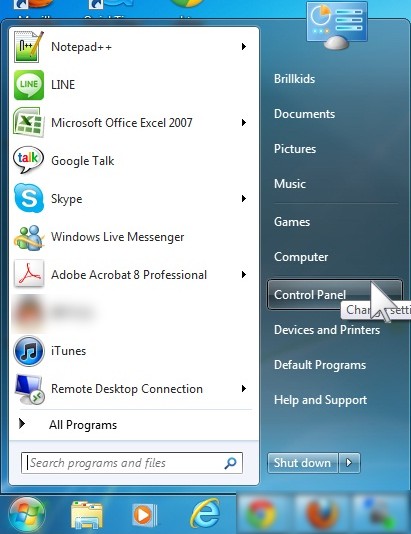
From your Start menu, open your Control Panel.
-
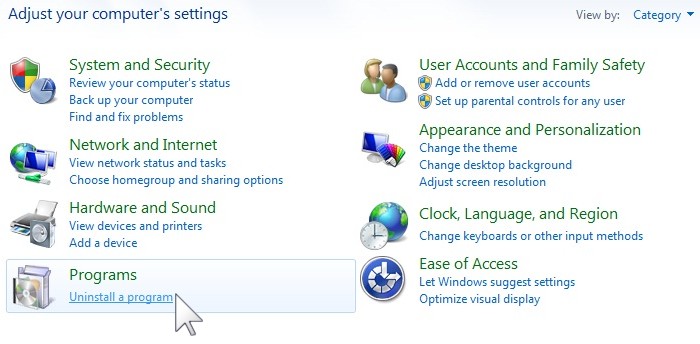
Under Programs, choose Uninstall a program.
-
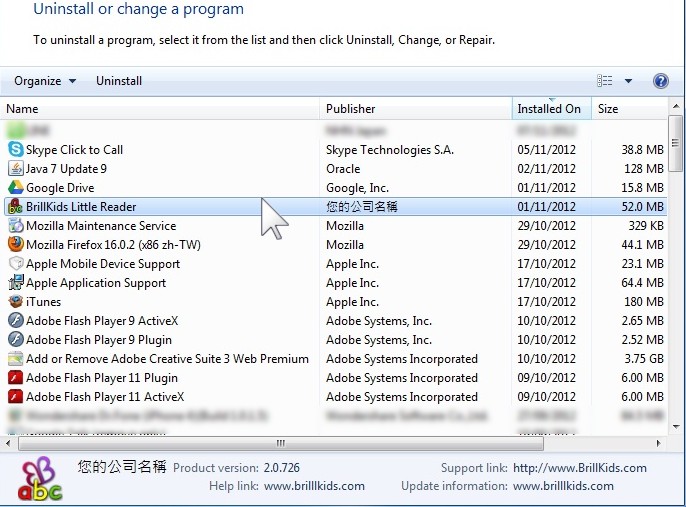
Find and double click BrillKids Little Reader.
-
In the InstallShield Wizard that opens, choose Remove and then click Next.
-
Choose whether you want to delete all preset settings and/or all media files and then click Next to start the uninstallation process.
-
Once the uninstallation has completed, click Finish to exit the the InstallShield Wizard.
Comments